Welcome to Rhebar.
1. Connect the adapter to the printer and power outlet.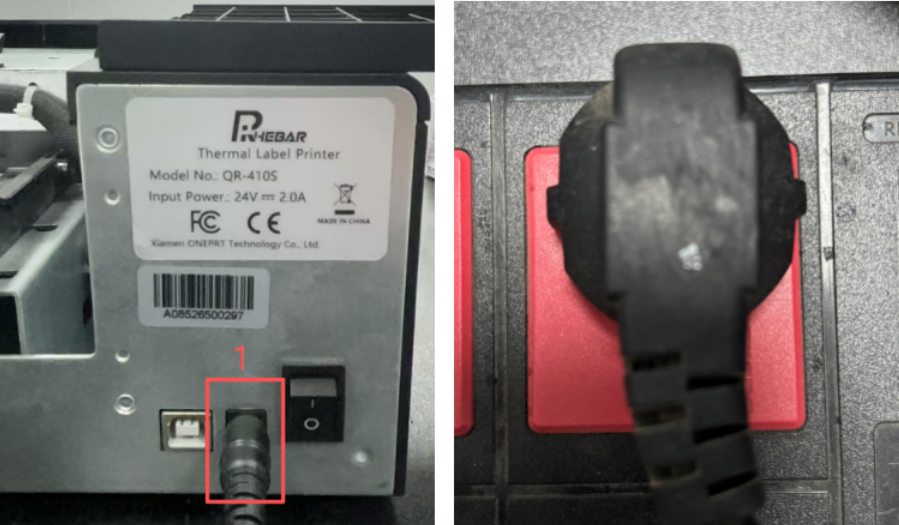
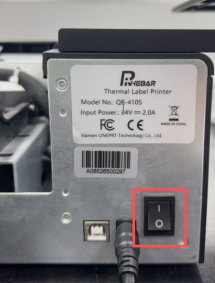
2. Turn on the printer power switch.
3. Flip the latch to open the printhead.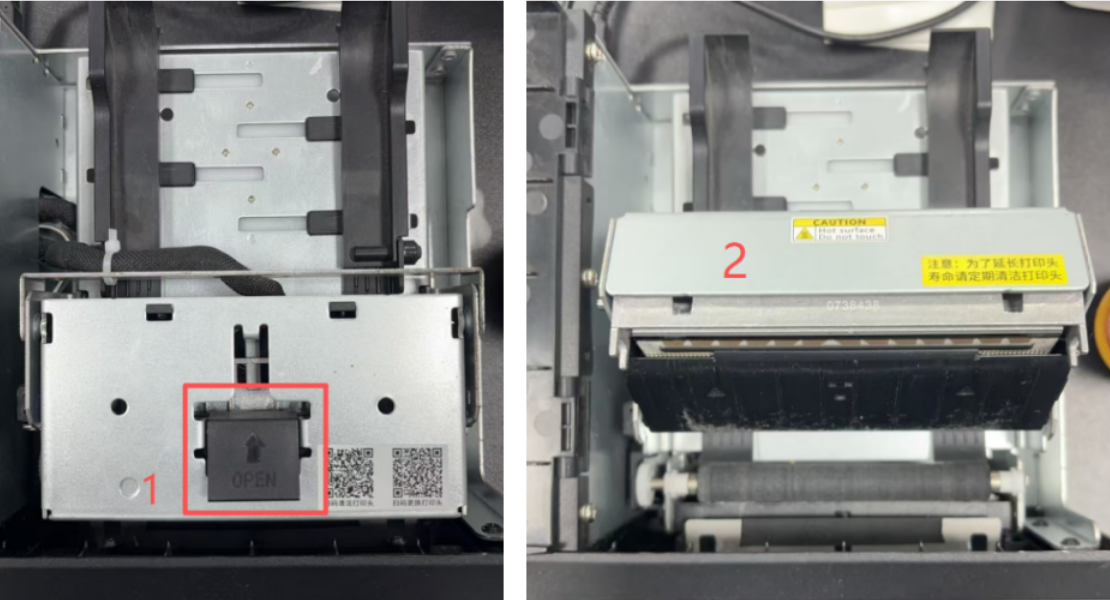
4. Load the label roll (print side facing up), adjust the media guides, and secure the roll.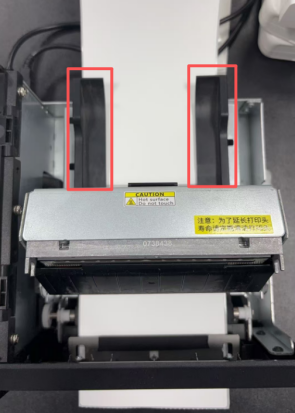
5. Close the printhead.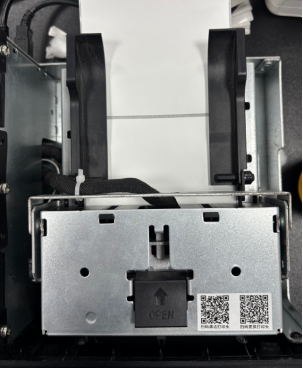
6. Press and hold the Feed button on the right until you hear one beep, then release it to start label calibration.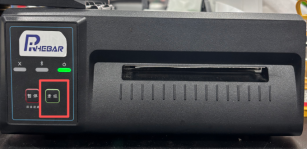
7. Press and hold the Feed button on the right until the buzzer beeps twice, then release it to print a self-test page.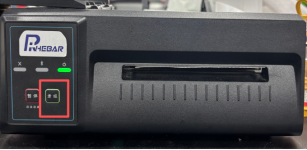
8. Connect the USB cable to the printer and computer.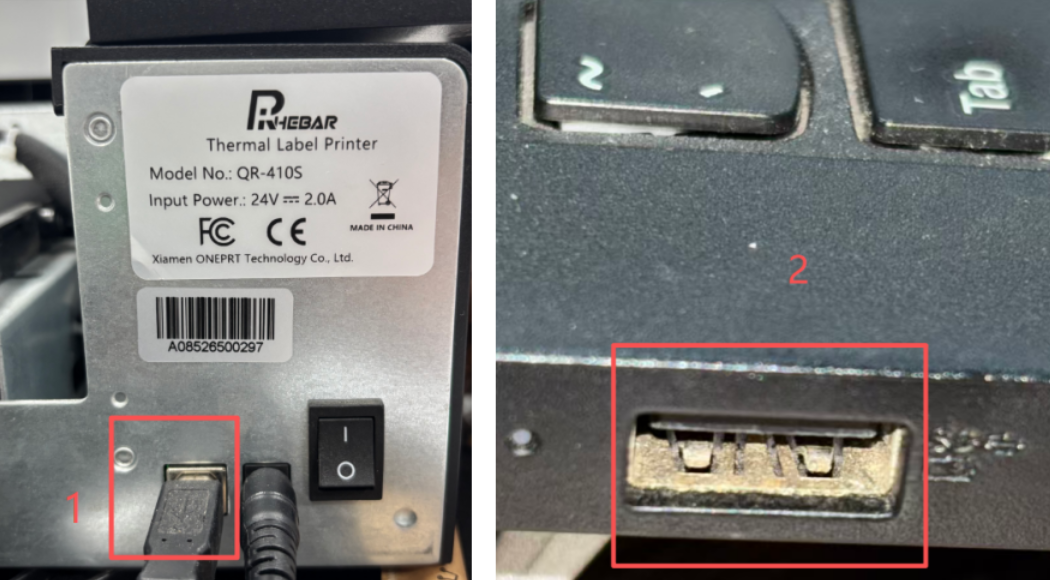
9. Click the icon to download the driver.
10. Run the driver installer and follow the on-screen instructions to complete the installation.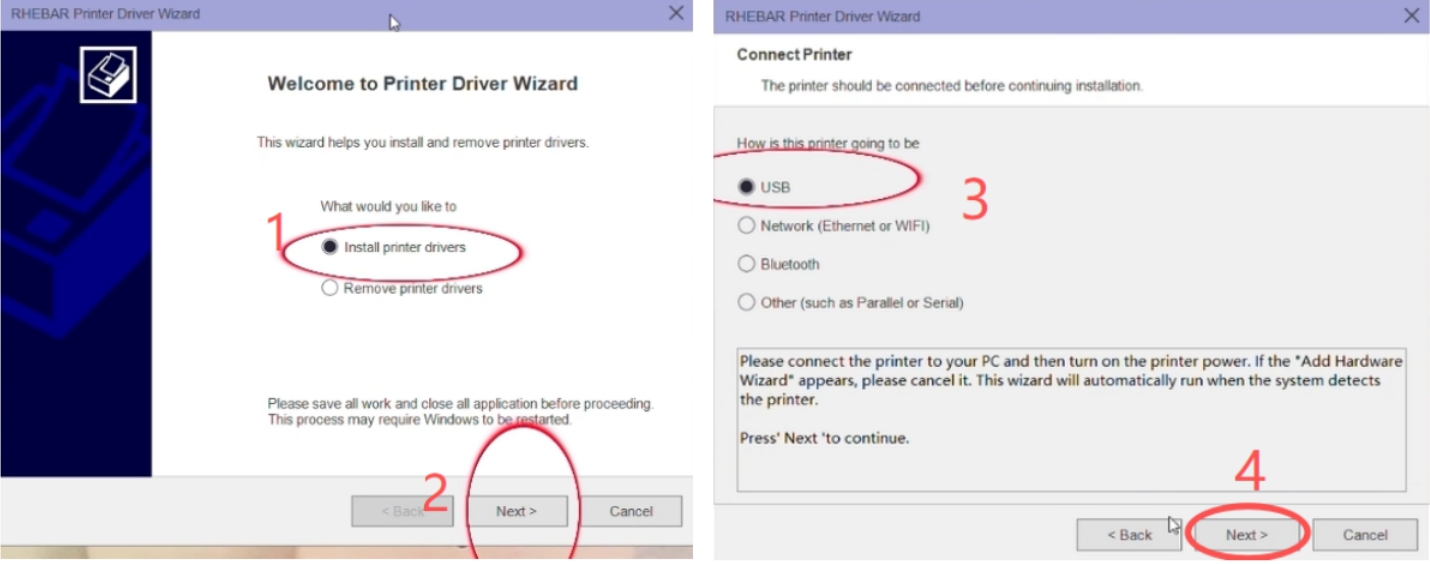
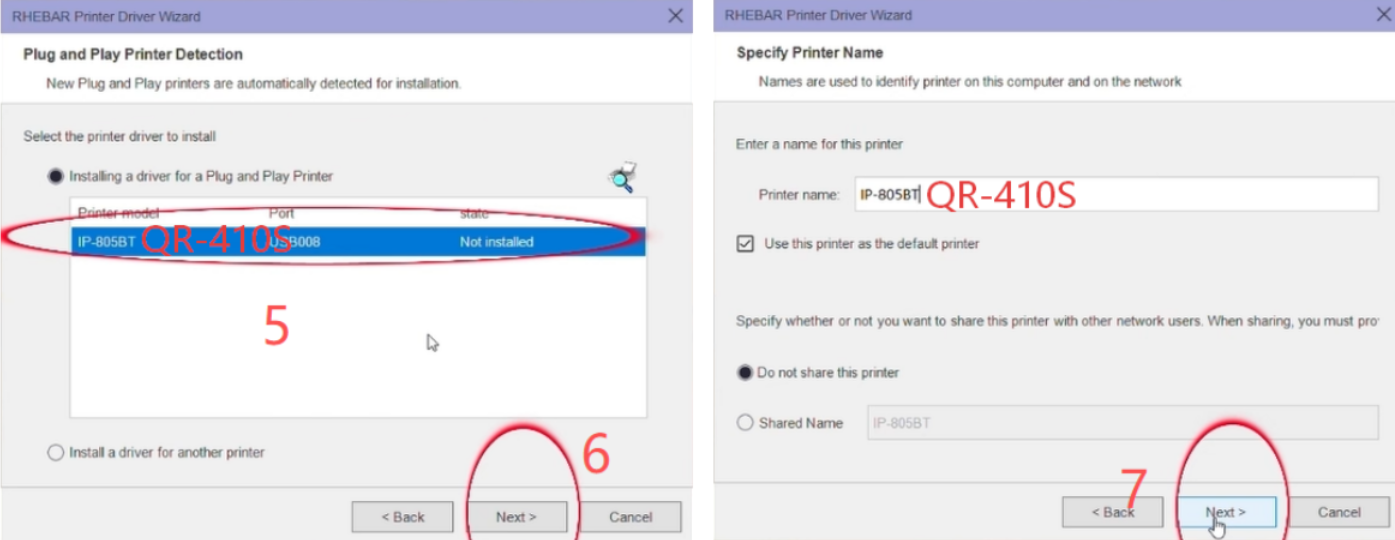
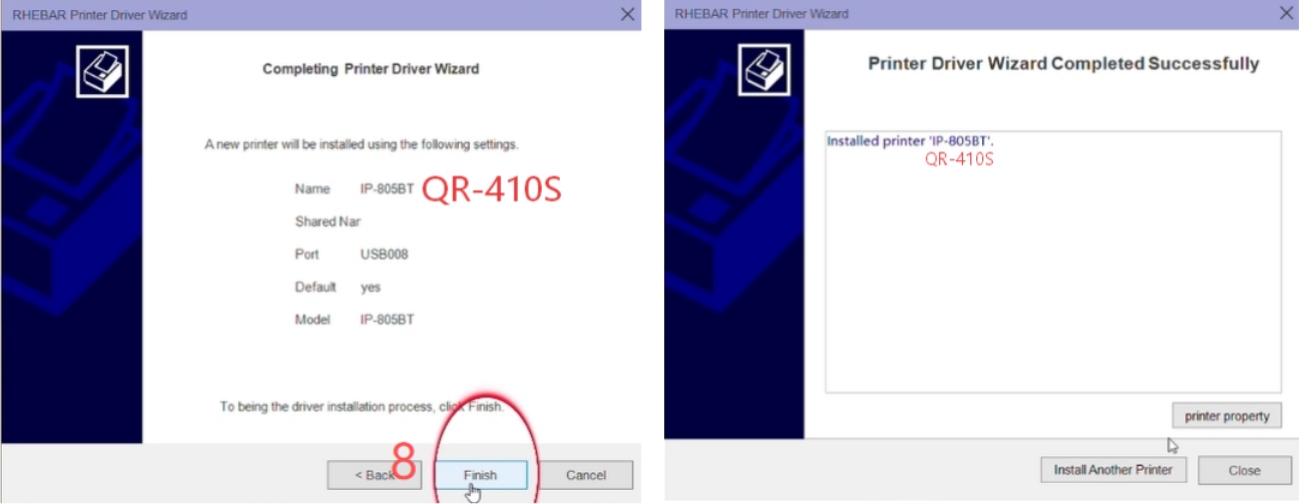
11. Print a test page to verify communication.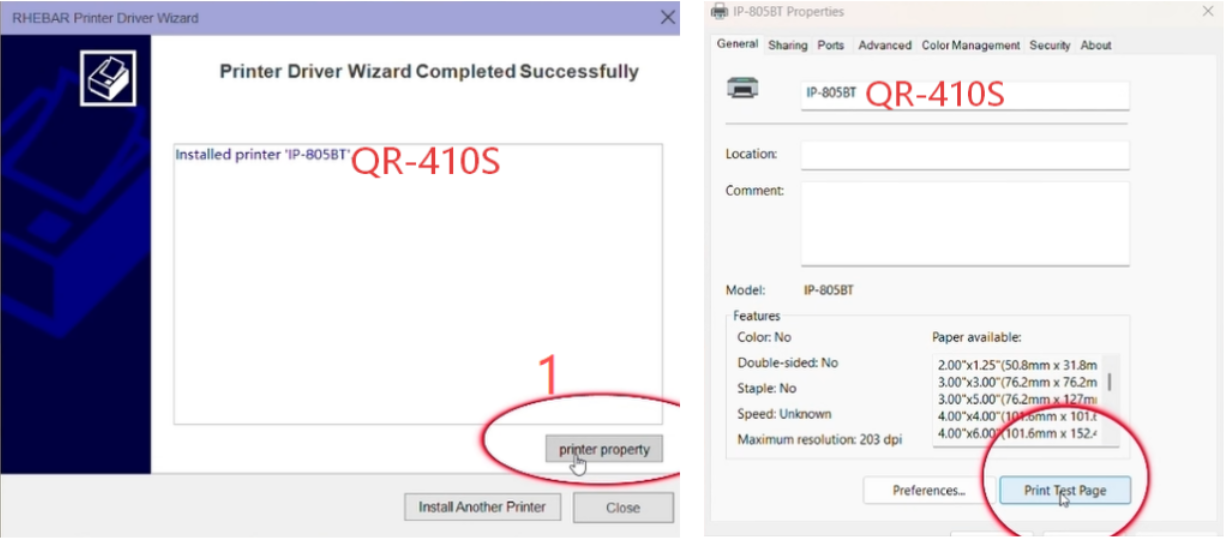
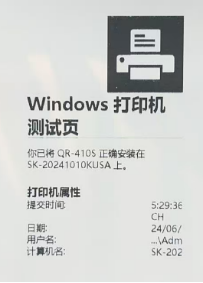
12. The printer driver has been installed successfully. Enjoy using your printer!
Was this article helpful?
That’s Great!
Thank you for your feedback
Sorry! We couldn't be helpful
Thank you for your feedback
Feedback sent
We appreciate your effort and will try to fix the article