Welcome to use Rhebar printer:
1.Please refer to the video to install the label holder.2.Please ensure the printer is Turn Off.
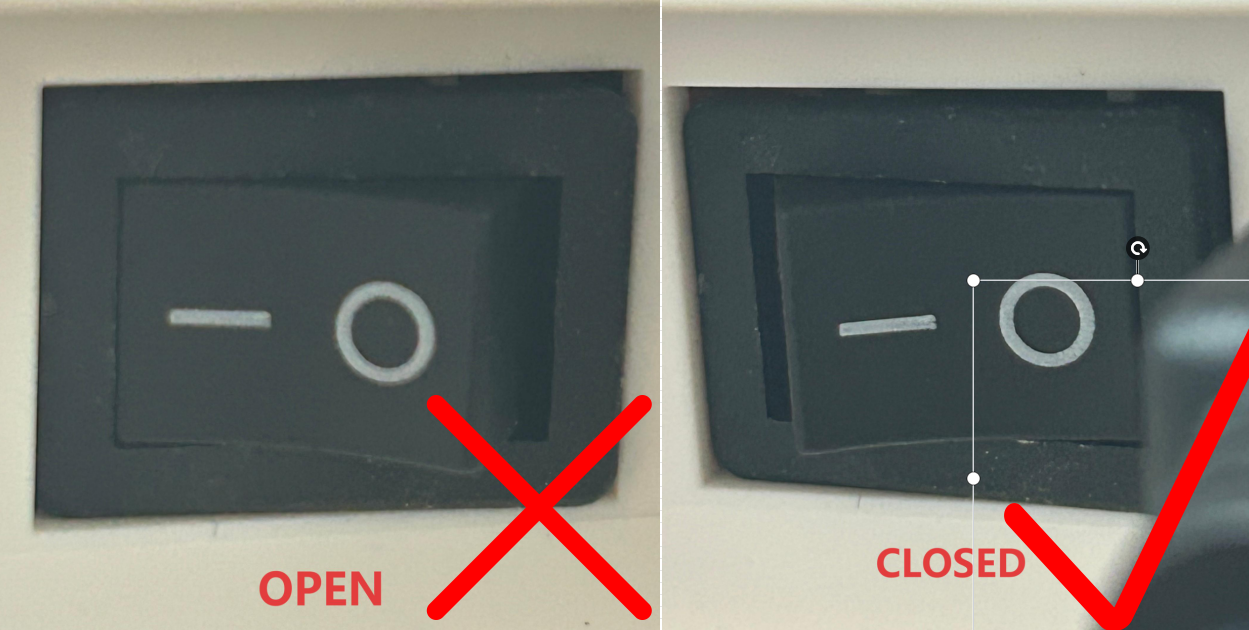
3.Please refer to the video to install the label paper, connect the printer power, and print a self-test page.
Note: Load the label paper with the printing side facing up
4.Connect the computer and printer using a USB cable.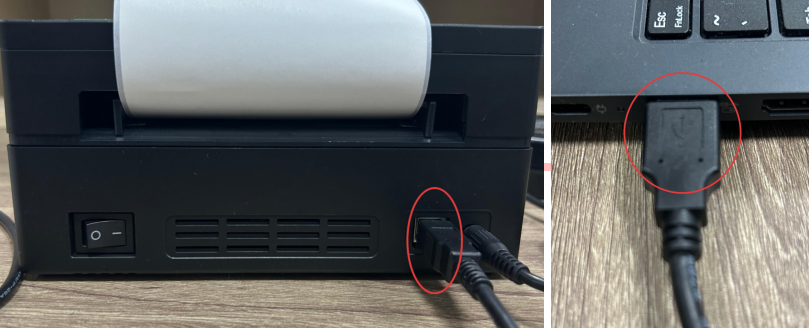
5.Download the printer driver from Button:
6.Open the driver file and follow the prompts to install the printer driverand print the test page.(You can also watch the demo video)7.If your computer suggests that the driver is malware. Please do not worry, it is not malware. Please follow the method below to set it up. If your computer does not have this prompt, go directly to step 10.


8.Click "Security&Privacy"
9.Click"Open Anyway"
10.Click"Open"
11.Click“Continue”
12.Click"Install"
13.Click"Close"
14.Find “Printers&Scanners” in System Settings.
15.Add new printer.


16.The driver was installed successfully. Then print a label. Choose the correct size according to your label size.
Enjoy your printing!
Was this article helpful?
That’s Great!
Thank you for your feedback
Sorry! We couldn't be helpful
Thank you for your feedback
Feedback sent
We appreciate your effort and will try to fix the article